Crop only bars that are part of the source pixels. Keep the remaining image’s proportions, then choose whether to preserve its shape or deliberately crop more for a fixed delivery canvas.
First find out where the bars exist
A video player can add black space because its window and the video have different shapes. Those display bars are not inside the file, so exporting a crop to remove them cuts real image. Baked-in bars, by contrast, are black pixels encoded into the source itself.
Open the clip in an editor with a visible frame boundary or examine an extracted frame at its native dimensions. If black regions are inside the source frame, they may be eligible for cropping. If the picture reaches the source edge while the player adds black outside it, change the viewing layout or delivery canvas instead. Also check the source’s pixel aspect ratio and display aspect ratio; not every file uses square pixels.
Inspect more than one frame before committing
Scrub the beginning, middle and end, then inspect titles, captions, transitions and wide shots. Bars that seem empty in the opening may contain subtitles later. A compilation can switch aspect ratios between clips. Dark scenery can also look like a border, particularly in a single paused frame.
Mark the actual picture edges where they are unambiguous. If the border changes over time, split the edit into sections rather than applying one fixed crop to the entire program. Keep a duplicate timeline. A crop is reversible in the editor while the original remains available, but exporting and deleting the source leaves you with only the reduced picture. Preserve the original and your crop notes for future delivery versions.
Calculate the remaining shape instead of guessing
Suppose a square-pixel 1920 × 1080 file contains 132 black pixels at both top and bottom. Cropping those rows leaves 1920 × 816, an aspect ratio of about 2.353:1. That is wider than 16:9. Removing the bars does not magically make the scene 16:9; it reveals the underlying wide picture.
If the destination accepts that shape, preserve it. If delivery requires a 1920 × 1080 canvas, choose a deliberate fit: retain the full wide frame with letterboxing, or enlarge it proportionally and lose image at the sides. Stretching the 816-pixel height to 1080 while holding width unchanged distorts faces and circles. The arithmetic explains the choice, but the image itself determines which crop is acceptable.
Apply a crop and keep scaling proportional
- In the editor, select a representative shot and open crop controls.
- Remove only the measured baked-in top, bottom or side regions. Use the viewer boundary to ensure you are cutting source pixels rather than just hiding player space.
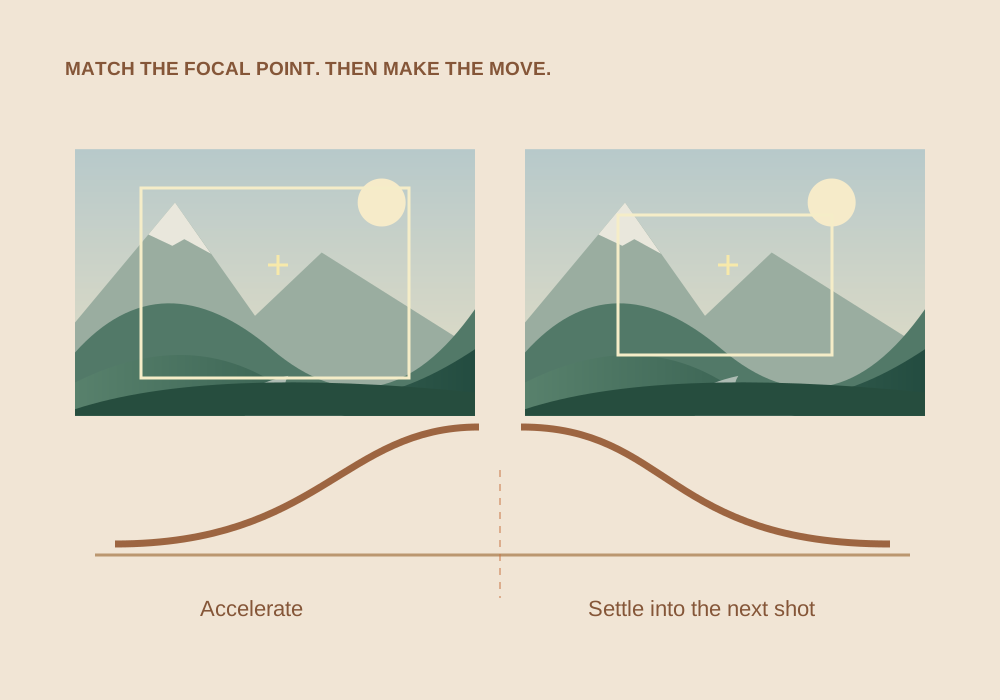
- Keep horizontal and vertical scale linked. Reposition the remaining picture when the delivery canvas needs a further creative crop.
- Choose a timeline canvas that represents the intended output. A source crop and timeline dimensions are separate controls.
- Scrub the entire shot with titles and captions visible, then repeat for any section whose frame shape changes.
Some editors’ crop controls mask edges while leaving the original canvas size; others can automatically expand the result. Inspect what your application actually exports instead of assuming every control named Crop behaves identically.
A command-line crop for a verified fixed border
For the specific 1920 × 1080 example above, an illustrative FFmpeg command is:
ffmpeg -i input.mp4 -vf "crop=1920:816:0:132" -c:v libx264 -crf 18 -preset medium -c:a copy cropped.mp4This selects a 1920 × 816 region starting 132 pixels below the top. It re-encodes video because cropping changes the decoded picture. Audio stream copying is appropriate only when the source audio is compatible with the chosen output container. The command assumes the described square-pixel geometry; it is not a preset for other files.
FFmpeg also provides crop-detection filters, but treat detection as a suggestion. A dark scene or later subtitle can mislead automated border detection. Inspect representative frames and the proposed dimensions before rendering the full clip. For common chroma-subsampled delivery codecs, use dimensions and offsets supported by the encoder, typically even values.
Check detail, captions and output geometry
Export a section containing a face, a circle or other familiar shape, the widest action and any captions near the edge. Review at the intended viewing size. Faces should keep their proportions; circles should remain round. Verify output dimensions and display aspect ratio in an information utility.
| Result | What to revise |
|---|---|
| Faces look too tall or wide | Unlinking scale or incorrect pixel-aspect interpretation |
| Captions disappear | A fixed crop ignored later content |
| New bars appear in the player | The player window differs from the clean output’s shape |
| Picture is softer after filling the canvas | The crop was enlarged beyond useful source detail |
Finally compare the full export’s duration and sync to the source. A crop should change framing, not playback timing. Keep the clean wide version if you also need a tighter 16:9 delivery; the two versions answer different presentation requirements.
Common questions
Will cropping black bars always make the file 16:9?
No. It reveals the remaining picture’s aspect ratio, which may be wider or narrower. A fixed 16:9 delivery then needs an additional fit or crop decision.
Can I crop without re-encoding the video?
Ordinary pixel cropping requires decoding and re-encoding. Some formats support display-crop metadata, but recipient support differs and that is not the same as rendering a new cropped picture.
Sources & further reading
Written for ToolWillow with original explanations and examples. Consult current product documentation for controls that vary by version.