Measure sync near the beginning and end. Convert variable frame rate only when it is part of the problem; a fixed offset and separate-device clock drift need different fixes.
A late voice and a drifting voice need different repairs
Your mouth matches the audio at the start of a tutorial, but twenty minutes later the words arrive after the lip movement. Moving the audio clip left fixes the end and breaks the beginning. That pattern is progressive drift. If the delay is the same throughout, you have a fixed offset instead.
Phone and screen recordings can use variable frame rate, or VFR: timestamps determine when each frame appears, rather than every interval being identical. VFR itself is valid media. Trouble appears when an editing or conversion stage interprets those timestamps incorrectly. Independent audio and video recording devices can also drift because their clocks differ. Dropped recording frames, damaged timestamps and an accidental speed change are other candidates.
Write down three sync measurements
- Keep the original untouched and put a copy on a fresh timeline with no retiming effects.
- Find a visible event with a sharp sound near the beginning: a clap, keyboard strike or object hitting a desk. Place a marker on the visible event and another on the sound.
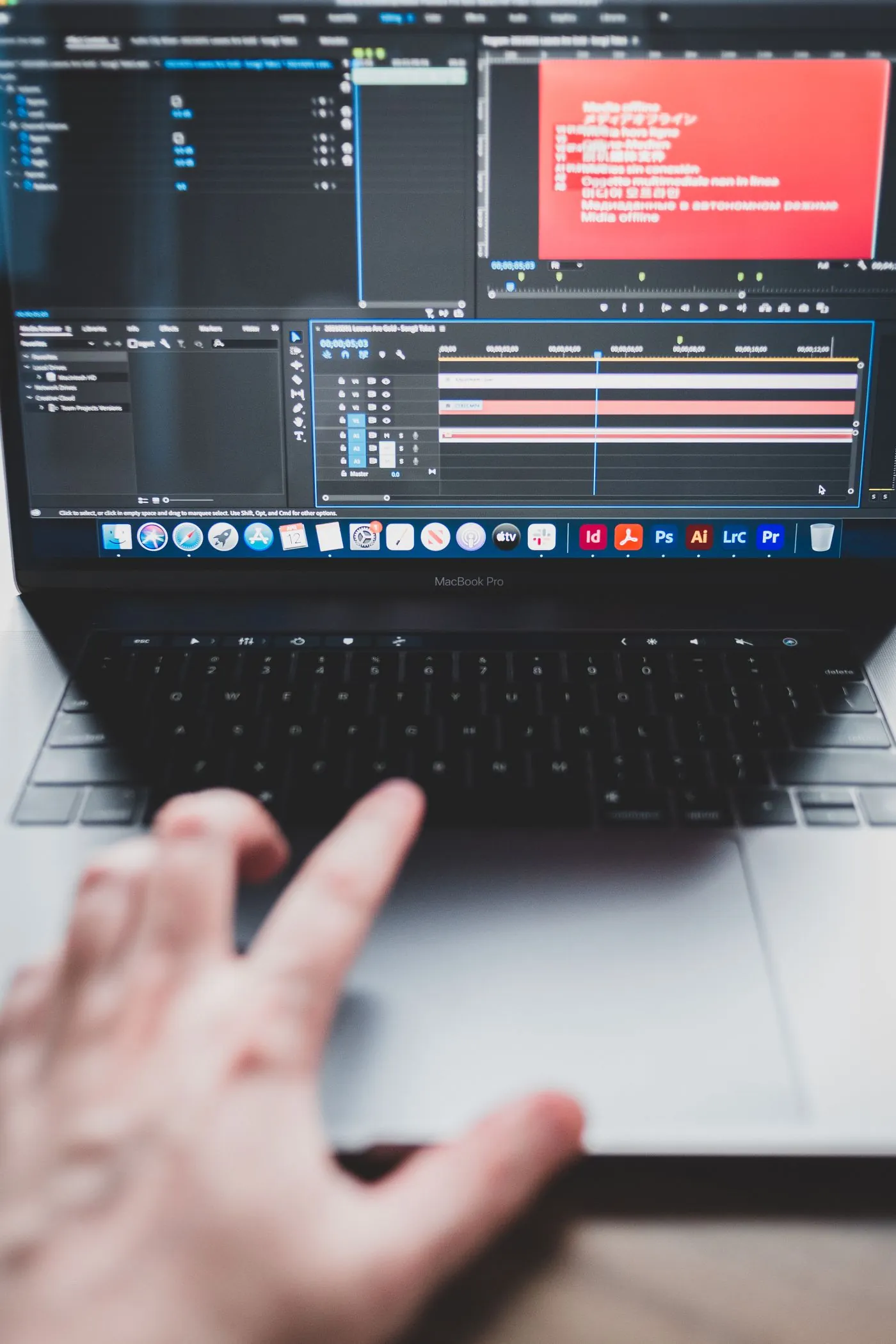
- Repeat around the middle and near the end. Read the gap in timeline frames at each point.
- Listen to the original in a second reliable player. Note whether it already drifts there or only after import.
For example, gaps of 3, 3 and 3 frames suggest an offset. Gaps of 0, 8 and 16 suggest accumulating timing error. These are diagnostic examples, not benchmarks. Speech is less precise than a clap, so do not build an elaborate repair from an uncertain lip-reading estimate.
Check the source before changing the timeline
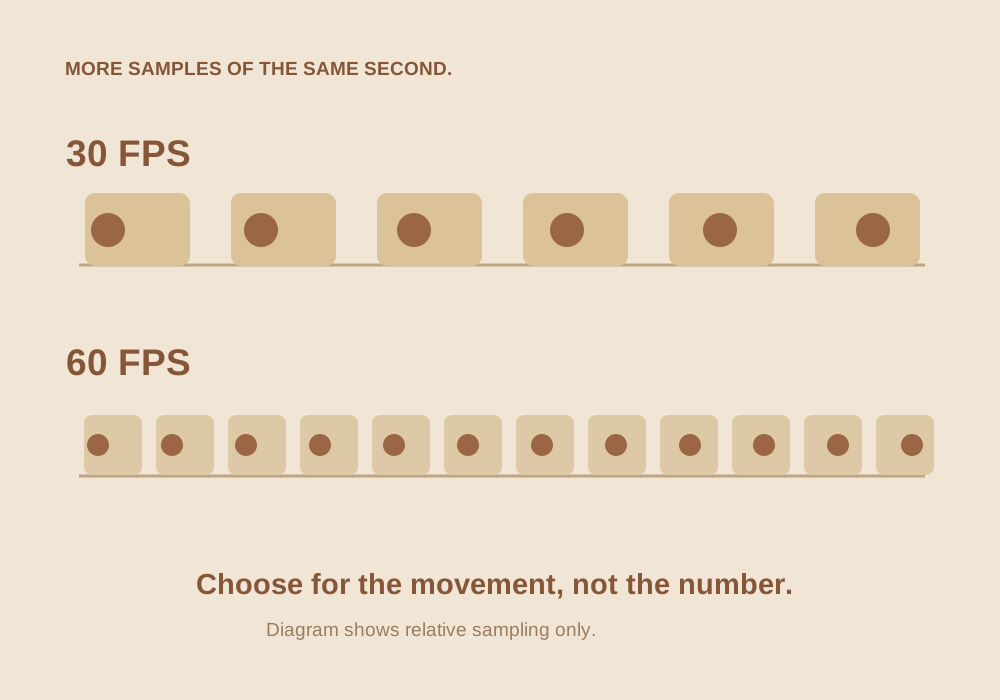
Inspect the source with MediaInfo or another utility that reports frame-rate mode and duration. A label such as “30 fps” in a player is not enough to prove the file is constant frame rate. Look at both nominal frame rate and timestamps or frame-rate mode.
Confirm that you have not interpreted a 29.97 recording as 30 through an editor’s footage-conform control. Changing a clip’s interpreted frame rate can change its running speed; setting an output timeline rate is a separate decision. Similarly, 44.1 kHz audio should be resampled when necessary, not merely relabeled as 48 kHz. Relabeling sample rate changes duration and pitch. If the original plays correctly, prioritize the import and editing chain.
Make one CFR editing copy in HandBrake
- Open the original recording in HandBrake and choose a compatible output preset.
- In the Video tab, choose a specific frame rate appropriate to the recording and project, then select Constant Framerate. Preserve 29.97 when that is the intended rate rather than rounding casually to 30.
- Keep dimensions unchanged for this test. Use a quality setting that retains the text and face detail your edit needs; do not solve sync and compression simultaneously.
- Keep the audio track you actually need, using an appropriate passthrough option when available or a compatible encode.
- Save to a new filename, such as
tutorial_cfr_edit.mp4, and import that file into a clean timeline.
CFR conversion duplicates or drops frames according to the chosen timing. It does not recover missing recording frames. HandBrake documents CFR as a useful special case for editing compatibility; it should not become an automatic treatment for every file.
Replace the source without hiding a speed error
Before replacing clips in your real project, compare the new copy’s duration and the three sync events against the original. A tiny end difference can come from output frame boundaries; a substantial duration change deserves investigation. Rebuild a short edit from the new file first and verify its audio alignment.
If CFR fixes import playback, relink or replace the source using your editor’s supported workflow. Confirm in-points, out-points and captions afterward, especially if the original timestamps were irregular. If drift remains in the original and the CFR copy, a second-device clock mismatch is more likely. That may require a small audio time stretch based on measured beginning and end events, with pitch preserved. A single global nudge cannot repair progressive drift.
A ten-minute check that prevents a twenty-minute surprise
Record a test with a sharp sync event at the start and end, plus a few seconds of speech and cursor motion. Take it through the same recorder, conversion and editor path you plan to use. Export it and compare all three stages: original, timeline and export.
| What you find | Next useful action |
|---|---|
| Constant gap at all markers | Adjust a fixed offset, then inspect all markers again |
| Original correct, imported VFR drifts | Test a CFR editing copy |
| Original already drifts | Investigate recorder load, timestamps and separate-device clocks |
| Timeline correct, export drifts | Check output timing and retiming settings |
Keep these notes with the project. They make the next recording easier to diagnose and give you evidence that the delivered file stays synchronized through its full duration.
Common questions
Should I convert every phone video to CFR?
No. VFR is valid, and many editors handle it correctly. Make a CFR copy when a reproducible editing compatibility or timing problem justifies it.
Can changing the audio sample rate fix any drift?
No. Correct resampling preserves duration; relabeling sample rate changes speed and pitch. Identify the cause before adjusting audio timing.
Sources & further reading
Written for ToolWillow with original explanations and examples. Consult current product documentation for controls that vary by version.