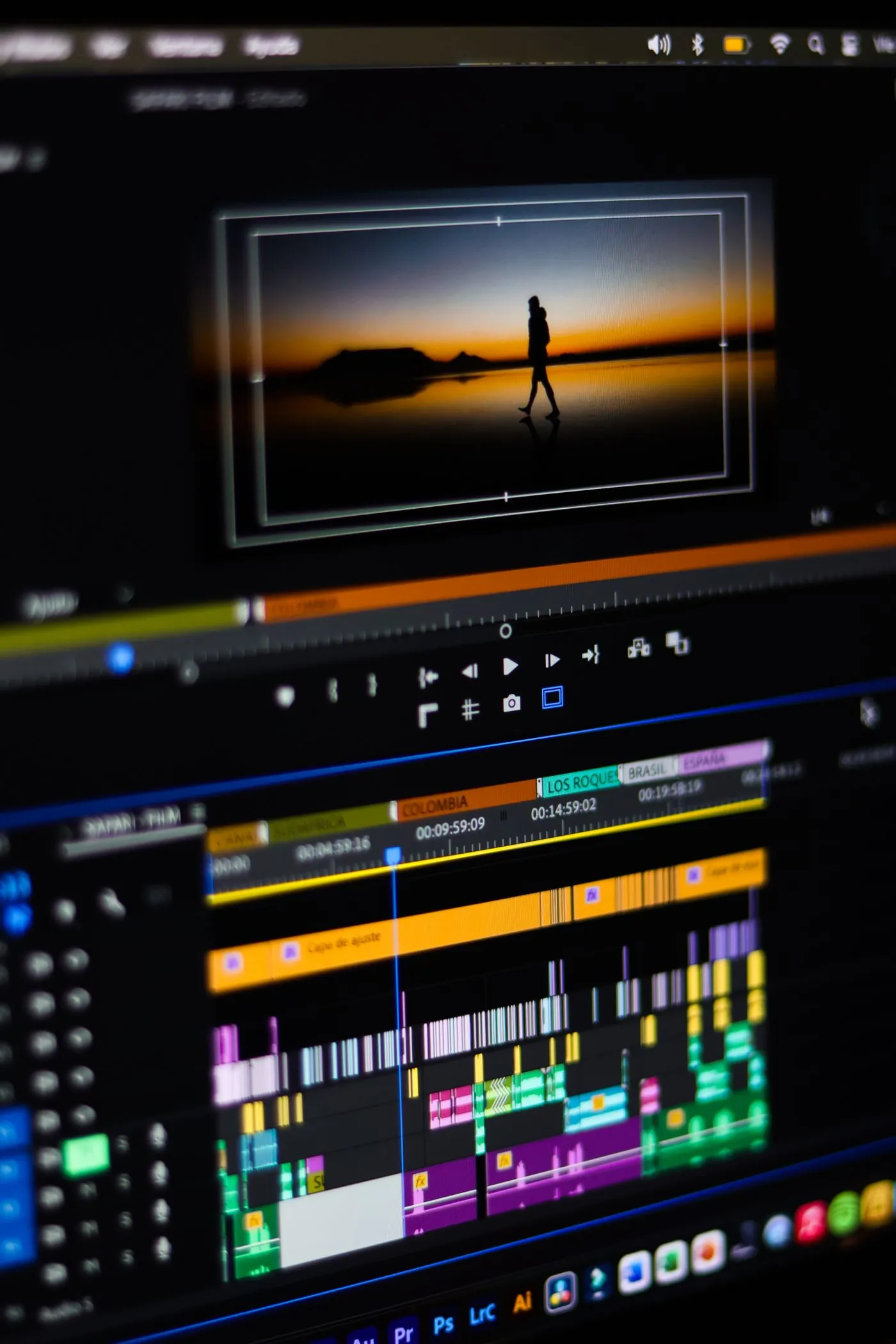
Re-import the export and compare it in Resolve first. If it matches there but differs in another player, investigate the playback and tagging chain before compensating in the grade.
Do not fix a mystery with more contrast
You like the image in Resolve, export it, open it in another player, and the blacks look lifted. It is tempting to darken the whole timeline. That can produce a delivery file that looks acceptable in one player and crushed everywhere else.
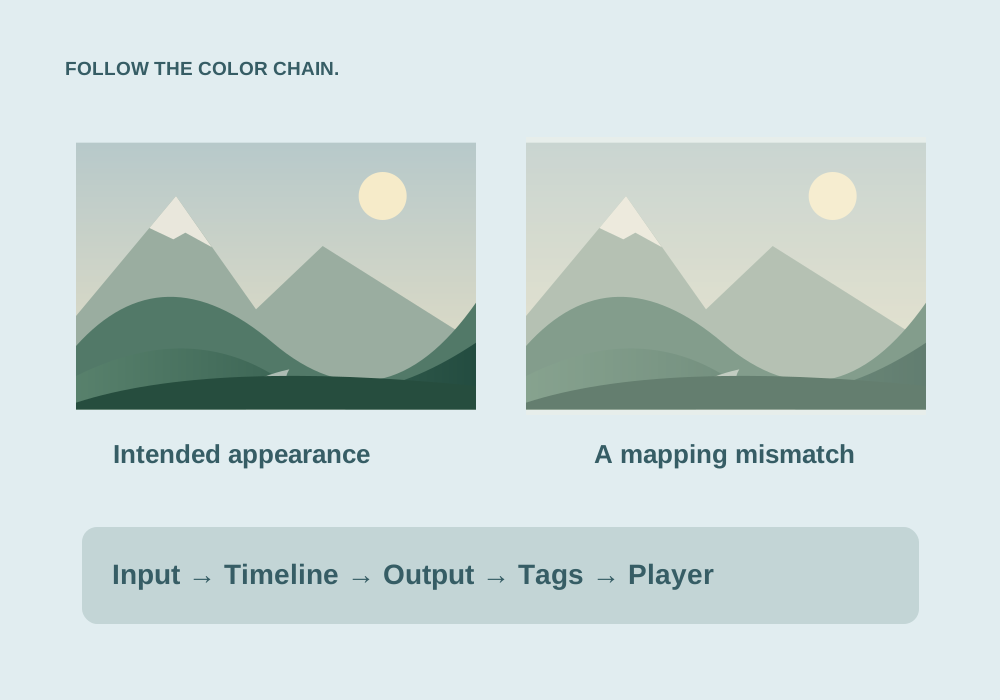
A video travels through several decisions: input color interpretation, timeline processing, output transform, encoding levels, metadata tags, and the player’s display conversion. A mismatch anywhere can change the appearance. The same symptom can have different causes, so start with a controlled comparison.
Re-import your export
- Export a short representative section using your intended delivery settings.
- Import the result into the same project and place it on a separate track or comparison timeline.
- Ensure the re-imported clip is interpreted in the correct input color space. In a managed project, do not accidentally apply a camera-log input transform to an already-transformed delivery file.
- Compare identical frames using the viewer and scopes.
- Then compare the file in the external player that showed the problem.
If the re-import matches when correctly interpreted, that is evidence to investigate external playback rather than immediately changing the grade. It is not proof that every output setting is ideal for every destination.
Check full and video levels
Video-range and full-range encoding use different mappings for signal values. As an 8-bit reference, nominal video luma commonly uses 16–235, while full range uses 0–255. Bit depth and signal type change the numeric ranges. These numbers are an explanation of mapping, not a suggestion to manually clamp every source.
If the encoder and decoder disagree about the mapping, blacks or highlights can shift. Inspect Clip Attributes and export Data Levels where applicable. Auto is a sensible default for many standard workflows. Override it only when the source, codec, and recipient requirements justify the change.
Forcing full range on every export is not a general cure. A receiver expecting video range can interpret the result incorrectly.
Check color spaces and output transforms
Determine whether your project is unmanaged DaVinci YRGB, Resolve Color Managed, or another workflow. Identify the camera input, timeline working space, and intended output. If the footage is log or HDR, a suitable transformation is required for ordinary SDR delivery.
Do not apply a transform twice: once in project management and again through an output LUT or node. Likewise, do not leave log footage untreated and expect an SDR player to display it as a finished picture. Check a known reference clip to distinguish a project-wide setup issue from one source clip.
Export color-space and gamma tags describe the encoded output to receiving software. They should match the actual output transform; changing a tag is not equivalent to converting the image.
Account for the player and display
Different players can interpret metadata and apply color management differently. A wide-gamut display, operating-system display profile, HDR mode, and viewing environment can all affect the comparison. On some Apple workflows, QuickTime/ColorSync interpretation is part of the difference people describe as a gamma shift.
Do not prescribe Rec.709-A, a gamma tag, or a contrast adjustment as a cure for every machine. Define the delivery target, use the current Resolve documentation for that workflow, and compare on a known display path. A browser thumbnail is not a reliable grading reference.
A useful troubleshooting order
- Confirm the source and re-import are interpreted correctly.
- Check timeline and output transforms for omissions or duplication.
- Check data-level choices against the codec and receiving workflow.
- Check output tags against the actual image transform.
- Compare the same file in more than one reputable player and on the target device.
Write down each setting you change and export a short labeled sample. One-variable tests tell you more than changing levels, tags, gamma, and contrast at the same time. Once you identify the cause, keep the simplest setting that satisfies the destination.
Common questions
Should I always export full levels?
No. Use levels appropriate to the codec and receiving workflow. A mismatch can create lifted blacks or crushed detail.
Does a gamma tag change my grade?
A tag describes the intended interpretation. A color transform changes the image values. Some players react to tags, but tagging and transforming are different operations.
Sources & further reading
Written for ToolWillow with original explanations and examples. Consult current product documentation for controls that vary by version.