Use Resolve’s proxy linking rather than replacing originals with similarly named files. Keep original timecode, frame rate and identity intact, and test a move before the full handoff.
A proxy is an editing stand-in, not a second master
A laptop may struggle to play several high-resolution camera clips while grading or adding titles. Proxy media gives the editor a lighter representation of those clips. The final workflow still needs a dependable link to the camera originals for finishing, reframing and export.
Resolve distinguishes proxy media, optimized media and render cache. They are related performance tools, but they are not interchangeable handoff packages. A project file does not contain all the footage. A folder full of cache renders is not a backup of your source. Before generating anything, decide where originals, proxies and project exports will live, and name them so another editor can understand the arrangement.
Create a folder structure before creating proxies
Use a project root with clear subfolders such as 01_Originals, 02_Proxies, 03_Project and 04_Exports. Preserve the camera card’s folder structure when it carries necessary metadata. Do not flatten multiple cards that reuse filenames such as C0001; those names alone do not identify the clips.
Keep a separate backup of camera originals before reorganizing your working copy. In Resolve, import originals from their intended location and confirm the frame rate and audio channels. Set the project’s timeline frame rate early. Generating proxies does not resolve a wrong frame-rate interpretation, and changing source names after linking makes later troubleshooting harder. Keep a short inventory of card folders, clip counts and recording dates with the project.
Generate a modest proxy set first
- Open Project Settings and locate the proxy-media format, resolution and generation location controls available in your Resolve version.
- Choose a supported editing codec and a reduced resolution that suits your machine. For example, half-resolution proxies may be enough for a single-camera 4K interview; quarter resolution may help a multicam edit but makes focus judgments harder.
- Select two representative originals in the Media Pool: one ordinary clip and one with unusual audio, duration or frame rate.
- Use Generate Proxy Media where available, or the matching supported proxy-generation workflow.
- Inspect the result and confirm that Resolve recognizes the proxy association before processing the entire project.
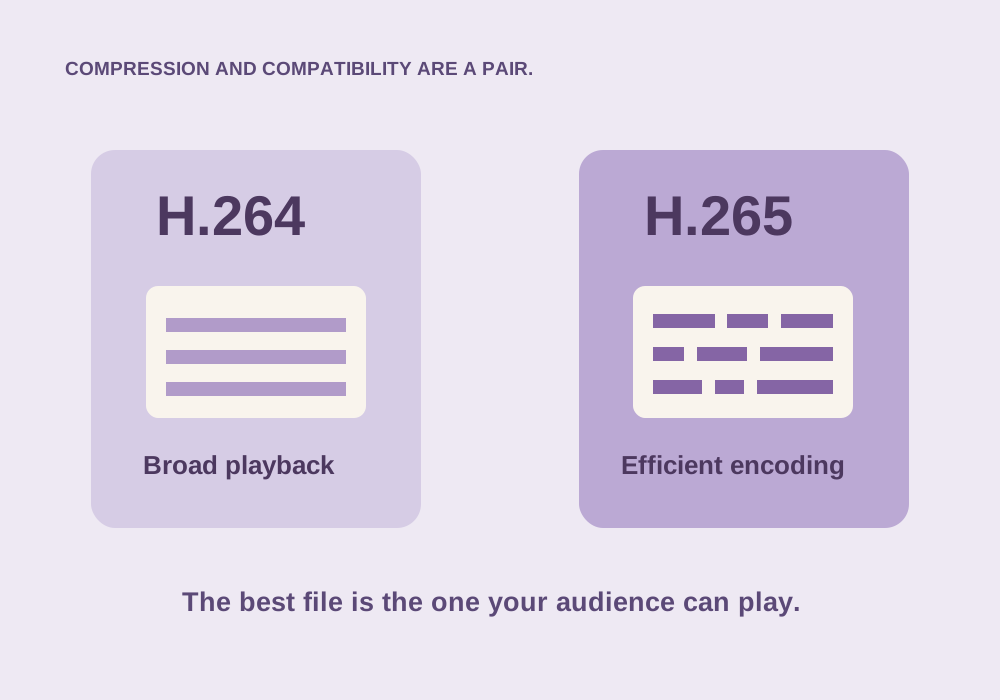
Do not choose a heavily compressed delivery preset just because the file is small. A proxy’s goal includes responsive decoding. Available codecs differ across operating systems and Resolve editions, so use what your installed version supports.
Confirm you are actually viewing proxy media
Use Resolve’s Playback proxy-handling controls to prefer proxies, then compare against the camera originals. Labels differ across releases; current versions expose choices such as preferring proxies or preferring camera originals. Check the Media Pool’s proxy status columns when available.
Find a shot with fine detail and switch between the two paths. A resolution difference may be visible, while playback should still show the same action, duration and audio alignment. If the “proxy” shows a different take, stop and repair the association. For proxies generated outside Resolve, use its supported Link Proxy Media workflow. Do not simply relink the original source entry to a low-resolution file and hope the application remembers which one was the master.
Run a small relocation test
Save the project and export a project file for the handoff. Copy the representative originals and proxies, preserving their folder arrangement, to a different test location. Open a copy of the project and relink the originals using the Media Pool’s relink or source-folder controls. Resolve may find proxies again from their relationship or require explicit linking, depending on how they were generated and moved.
Verify clip identity, duration, frame rate, timecode and audio channels after relinking. A matching filename is weak evidence when several camera cards contain the same name. If only some clips are offline, investigate their paths individually instead of renaming the entire media set. Once the two-clip move works, repeat the same process for the full handoff and include a note explaining which root folder should be relinked.
Finish from originals and verify the export path
Before final delivery, make camera originals available, choose the intended playback path and inspect export options that could use proxy or optimized media. For a master that should use originals, disable those alternatives where exposed. Check demanding sections: digital zooms, noise reduction, stabilization and fine-text graphics.
Export a short section at delivery resolution, re-import it, and compare a detail-heavy frame against the correctly interpreted original. Then disconnect only the proxy folder in a duplicate test project and confirm the same section still renders from originals. Do not delete the working proxy folder for this test. Archive the project file, sources and handoff notes together; proxies can often be regenerated, but missing originals cannot be reconstructed from them.
Common questions
Does exporting a Resolve project include the original videos?
An ordinary project export stores project information, not all media. Use an appropriate archive or separately collect and verify the sources for a complete handoff.
Can proxies use a different frame rate?
Preserve source timing and identity for a dependable link. Conforming frame rate or changing duration turns a simple proxy handoff into a different media-management problem.
Sources & further reading
Written for ToolWillow with original explanations and examples. Consult current product documentation for controls that vary by version.