
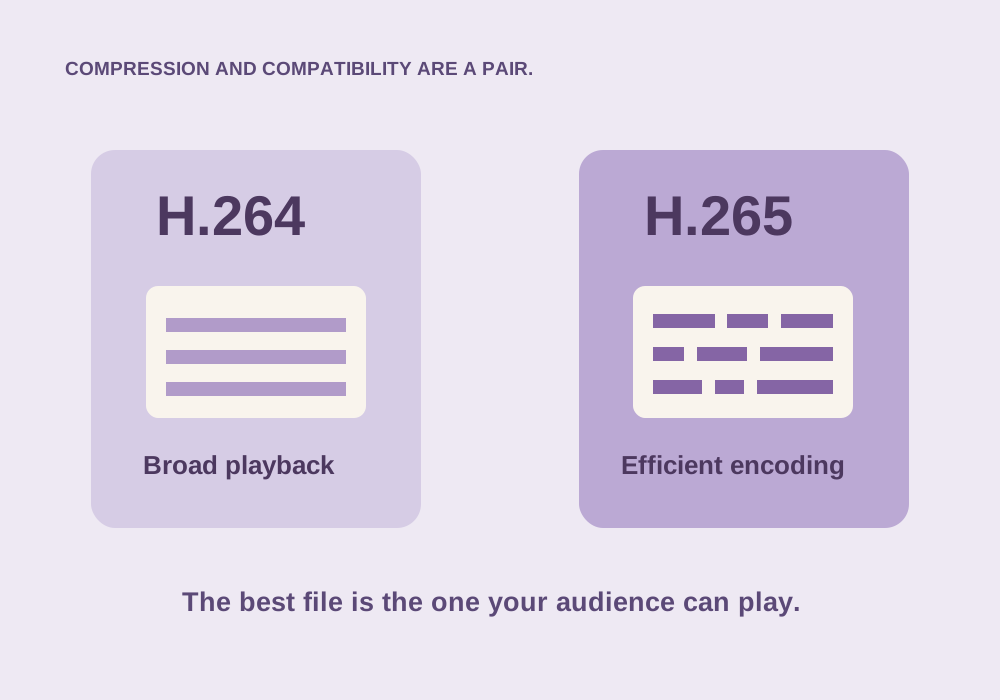
H.264 is a practical default for mixed-device delivery. HEVC/H.265 can save space when the entire playback and editing chain supports the chosen profile.
Smaller does not mean simpler
Video encoders remove redundancy inside each frame and between nearby frames. H.265, also called HEVC, offers more sophisticated ways to describe the picture than H.264/AVC. That can improve compression efficiency, but decoding the result may demand hardware or software support that an older device does not have.
There is no reliable “always half the size” rule. Results depend on the source, encoder implementation, preset, bitrate or quality control, and what you count as equivalent visual quality. A fast hardware H.265 encode and a slow software H.264 encode are not a controlled codec comparison.
Compatibility has several layers
A player must understand the container, decode the video codec, support the specific profile and bit depth, and handle the color information. A device that plays one 8-bit HEVC file may struggle with a different 10-bit HDR file. The extension MP4 does not settle those questions.
Hardware decoding often makes supported codecs efficient to play. Without it, the CPU may do more work, which can lead to stutter, heat, or battery drain. Browser support also depends on the operating system and available media components. Test the actual destination rather than assuming support from a codec name alone.
Delivery and editing are different jobs
| Situation | Reasonable first choice |
|---|---|
| Sharing with unknown devices | H.264 in MP4 with compatible audio |
| Saving space on known compatible devices | HEVC, after a playback check |
| Editing difficult phone footage | Proxies or an intermediate codec supported by the editor |
| Uploading to a platform | That platform’s current accepted upload settings |
A highly compressed file can be efficient to store and inconvenient to scrub. Inter-frame codecs may require reconstructing nearby frames when you jump around a timeline. Proxies make editing more responsive without requiring you to discard the original footage.
Diagnose a stuttering file
- Try a current local player on the same device. Distinguish a browser issue from a general decode problem.
- Check whether the clip is unusually high resolution, high frame rate, 10-bit, or HDR.
- Check the editor’s codec support and whether hardware decoding is available for your configuration.
- Create a short H.264 compatibility copy or an editing proxy and compare.
- Keep the original until you have verified picture, duration, and audio in the new copy.
Do not install random codec packs just because a file fails. Prefer your operating system’s documented media components and reputable players, and verify the file is complete.
Compare codecs honestly
Take one source and encode short samples. Match resolution, frame rate, audio settings, and the intended visual quality. Record both file size and encoding time. RF or CRF numbers are not directly comparable across encoders, even when their labels look similar.
Watch a moving segment and a textured frame. Also test seeking on the receiving device. The most useful result is a file that meets your storage and playback needs, not the smallest number in a folder.
Common questions
Is H.265 the same thing as HEVC?
Yes. HEVC is the name commonly used for the H.265 video coding standard.
Does converting to H.265 improve quality?
No. A new encode cannot recover detail already lost. It may reduce storage size at an acceptable visual cost, depending on settings.
Sources & further reading
Written for ToolWillow with original explanations and examples. Consult current product documentation for controls that vary by version.